
The words on the signs and menus around you are the words you need. They are common, they are real, and you saw them in a place you remember, which makes them easier to keep. This guide shows how to turn the Japanese you photograph into flashcards, by JLPT level, and how to take them to Anki.
1. Save words as you read
After a scan, the Result screen lists every word with its reading and meaning. Tap + next to a word to save it, or save them all at once. SAVE TO picks the folder they go to, such as Menus, Signs or a trip. If the list has words you don't need, swipe them away, and use SELECT to delete junk lines from the scan.
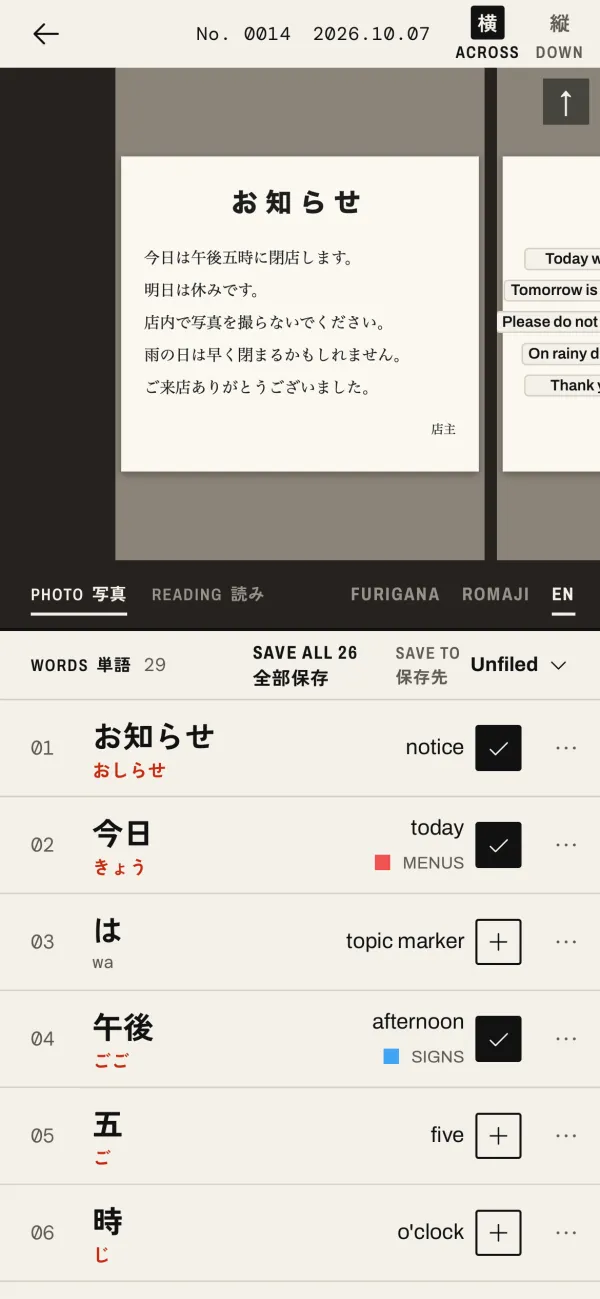
Free keeps up to 3 folders; Plus and Pro have no limit.
2. Review with flashcards
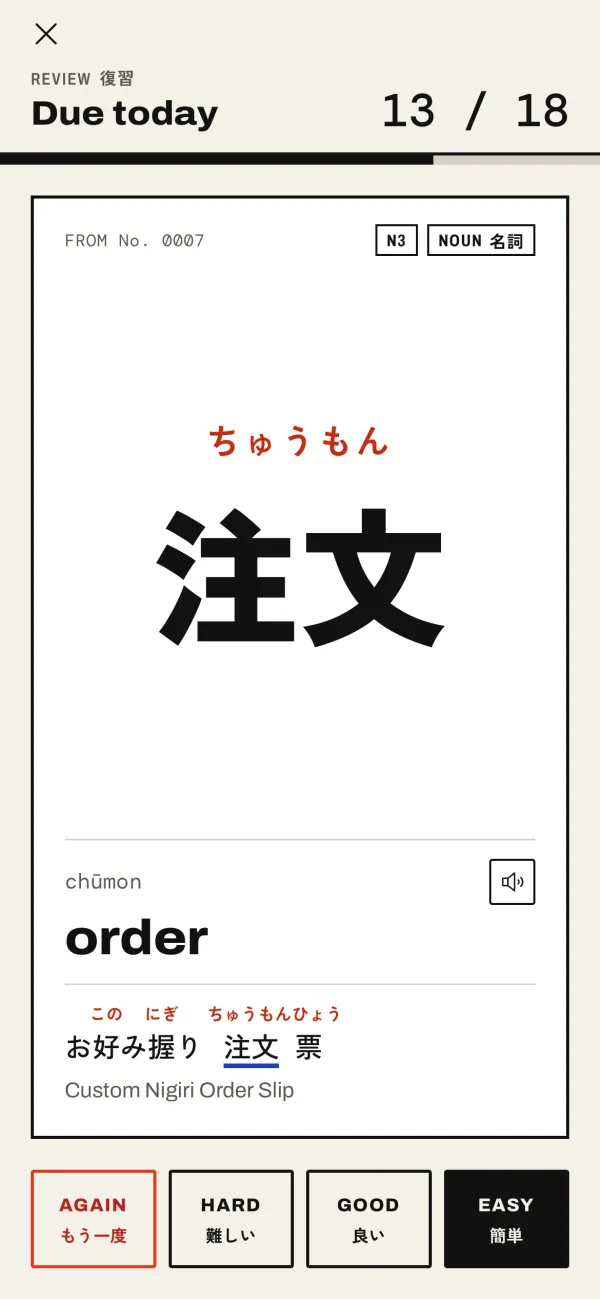
Your saved words are in Words. When some are due, the REVIEW button shows how many. Each card shows the word; tap Show answer for its furigana, romaji, meaning and the sentence you found it in, then rate it Again, Hard, Good or Easy.
The app spaces your reviews (a modified SM-2, the method Anki started from): words you know come back less often, and words you miss come back soon. A few minutes a day is enough.
3. Study by JLPT level
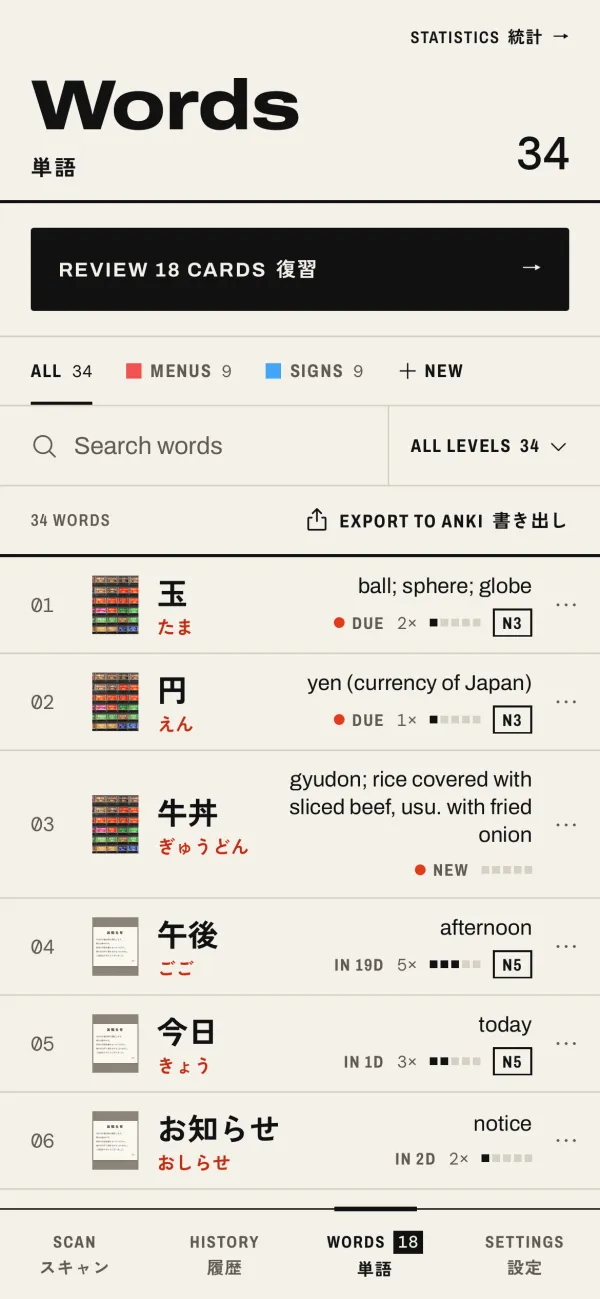
Words show their JLPT level, from N5 (the first level) to N1, where the word has one. In Words you can filter by level, so you can work through the N5 words first. Signs are full of JLPT N5 vocabulary: 駅 (eki, station), 今日 (kyō, today) and 午後 (gogo, afternoon) are all N5.
The JLPT has not published official word lists since 2010. The levels in the app come from the widely used lists by Jonathan Waller (tanos.co.uk), so treat them as a guide.
4. Make Anki cards from your photos
If you already use Anki, tap Export to Anki in Words, or on a folder. The app makes an Anki package (.apkg) that opens in Anki on a computer, AnkiMobile on iPhone and iPad, and AnkiDroid.
- Each word becomes a note in the deck "Furigana Reader", or "Furigana Reader::" and the folder's name.
- A note has the word, its reading and furigana, romaji, meaning, the sentence it came from, the photo, the JLPT level and the part of speech.
- Export again later and the notes you already have are updated, not added twice.
5. Make a photo journal of your trip
A Board is a page made from your scans: your photos, as they are or cut out as stickers, word labels that point at the words on the photo, and your own text and drawings. Open it from History with BOARD, and share the page as a picture. It is a good way to remember where you met each word.
When another tool is better
Furigana Reader is for the words you meet, not a full course. For grammar and the whole JLPT N5 word list in order, use a textbook or a course, or a shared JLPT deck in Anki. Anki is free on a computer and on Android; AnkiMobile on iPhone is a paid app. If you only need flashcards, the review in Furigana Reader is free on every plan.
Start with one sign
Next time you are out, take a photo of one sign or one menu, save the three words you most want to know, and review them tomorrow. New to reading kanji? Start with how to read signs and menus.